|
FAQs about configurations and trouble shootings of W-Hotspot
1. Unable to connect W-hotspot
2. W-hotspot is connected but Internet is not working.
3. Unable to Log in
1. Unable to connect W-Hotspot
If your Notebook or PDA has a built-in wireless network device, please check power button or function key button and make sure the device is turned on.
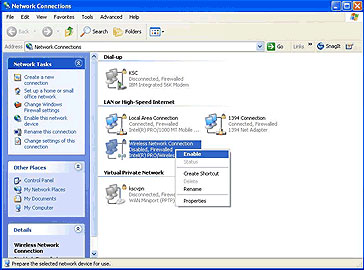
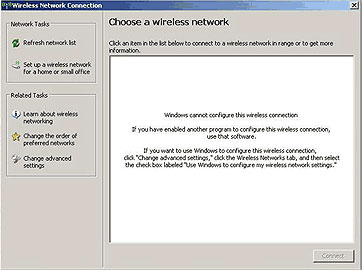
Check Wireless Network Connection and make sure that it is enabled, if not click Enable. Then connect to W-hotspot as usual. After selecting View Available Wireless Networks, if wireless network connection cannot be configured, another utility might be running on your PC. Thus, the use of that software to configure wireless connection is recommended.  Top Page Top Page
W-hotspot is connected but Internet is not working.
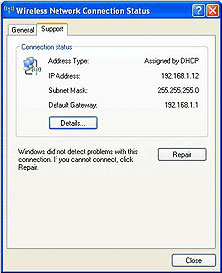
Check whether your PC can obtain DHCP from the service location or not. If the PC functions properly, the following details will be shown. In this case, please contact our Customer Support at 076-214497
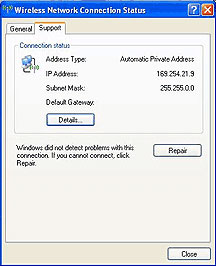
If your PC cannot obtain DHCP, the wireless network connection status will be shown as illustrated below. This indicates that there may be some problem with DHPC client on your PC. To solve this problem, the following steps are recommended.
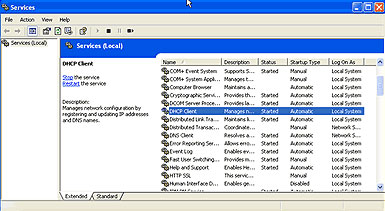
1. Click Start / Control Panel / Administrative Tools / Services 2. Right -click at DHCP Client, select Stop then click Start and try again Unable to Log in
Please contact our Customer Support to check the Account and find out the cause of this problem.
 Top Page Top Page
|