|
Getting started with W-Hotspot
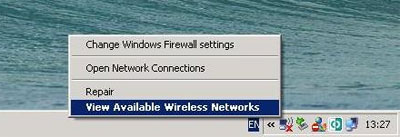
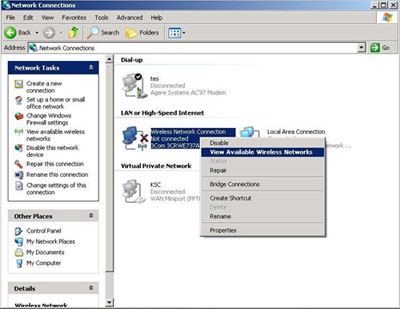
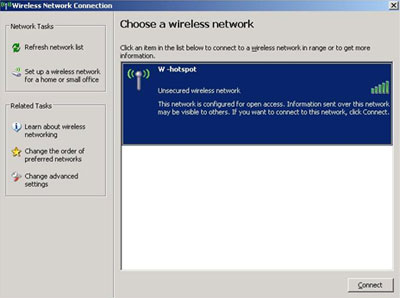
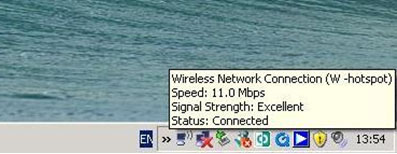
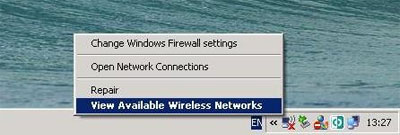
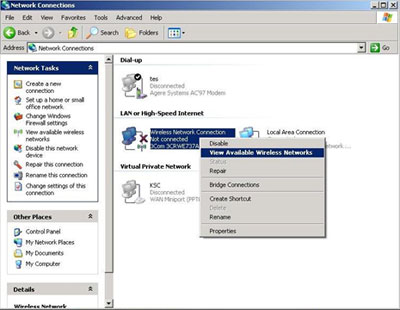
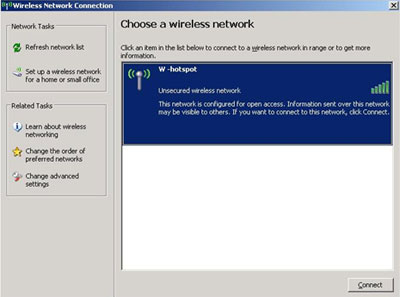
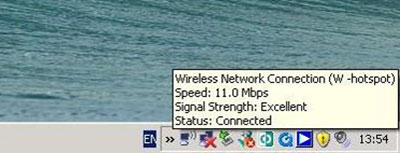
1. Right-click at the wireless network connection icon on the system tray on the bottom right of the screen. Select View Available Wireless Networks as shown. 2. If no wireless network connection icon is displayed, go to Start/ Control Panel/ Network Connections. Right-click at Wireless Network Connection icon, select View Available Wireless Networks as show. A pop-up window with available wireless networks will be displayed. Choose W-hotspot from pop up window and click connect button as shown. Once the W-hotspot hotspot has been connected, the Wireless Network Connection Icon will be displayed.  Top Page Top Page
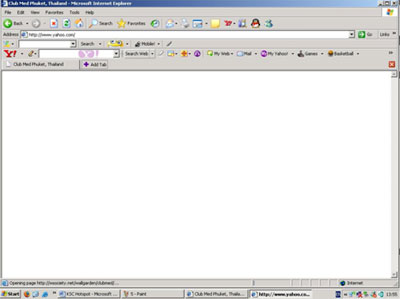
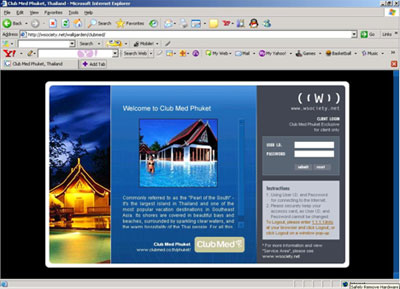
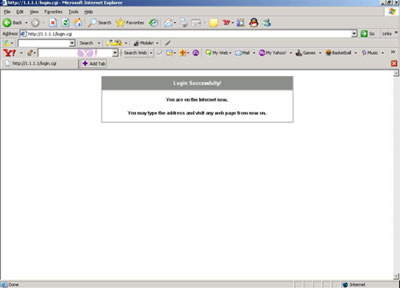
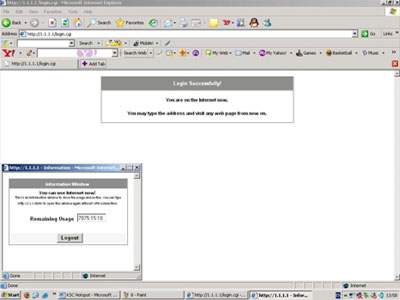
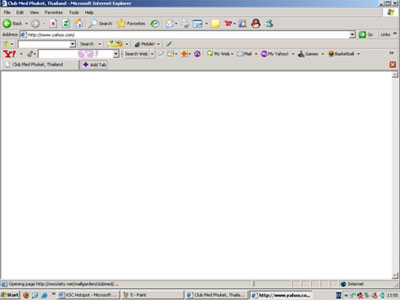
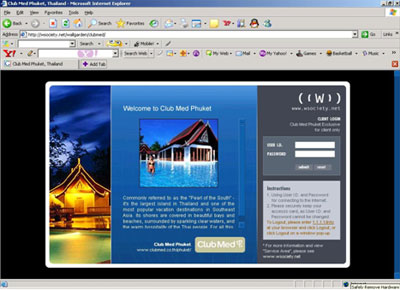
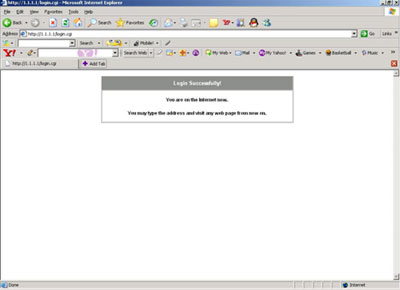
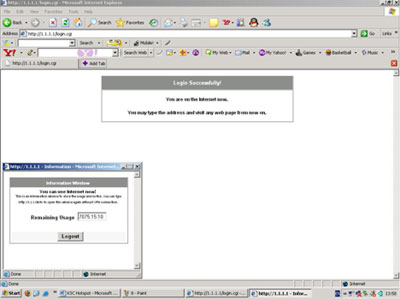
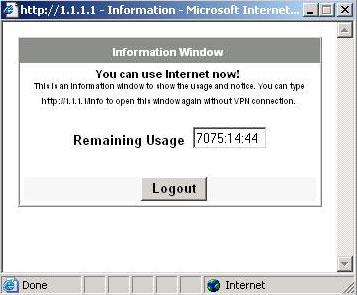
3. To connect to Internet, Logging in through Web Brower is required. (In this case, Internet Explorer is used.) Launch the Internet Explorer and type a URL, as shown. The login screen is now displayed. Enter Username and Password as show. Click submit button. A page with remaining usage period will appear as illustrated. If your windows don't block pop-up you will get page as below You can close the small windows (Information window) then you will get message as below At this stage, you can enjoy Internet access from W-hotspot. Top Page Logging Out of W-Hotspot
1. Right-click at the wireless network connection icon on the system tray on the bottom right of the screen. Select View Available Wireless Networks as shown. 2. If no wireless network connection icon is displayed, go to Start/ Control Panel/ Network Connections. Right-click at Wireless Network Connection icon, select View Available Wireless Networks as show. A pop-up window with available wireless networks will be displayed. Choose W-hotspot from pop up window and click connect button as shown. Once the W-hotspot hotspot has been connected, the Wireless Network Connection Icon will be displayed. Top Page 3. To connect to Internet, Logging in through Web Brower is required. (In this case, Internet Explorer is used.) Launch the Internet Explorer and type a URL, as shown. The login screen is now displayed. Enter Username and Password as show. Click submit button. A page with remaining usage period will appear as illustrated. If your windows don't block pop-up you will get page as below You can close the small windows (Information window) then you will get message as below At this stage, you can enjoy Internet access from W-hotspot. Top Page Logging Out of W-Hotspot
Do not forget to log out from the system once you finish using Internet. There are three ways to log out.
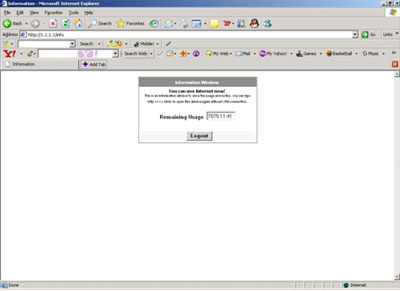
1. Click Log out button on small window which constantly popup during your usage period. 2. Optionally, if the popup window has been closed or blocked by some previously installed program, type "1.1.1.1/info" in the address bar on Internet Explorer then click enter. The log out message will be displayed on your browser, confirming that your log out is complete.
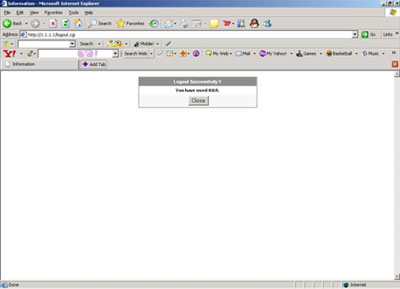
3. After you click logout you will get page as below
 Top Page Top Page
|